Reset Raymarine Element MFD – Complete guide for factory reset

|29/03, 2024

Reset Raymarine Element MFD – Complete guide for factory reset

Detailed step-by-step guide to factory reset your Raymarine Element multifunction display (MFD).

Resetting your Raymarine Element multifunction display (MFD) can resolve device issues or restore it to factory settings. Follow this detailed guide to perform a proper reset.
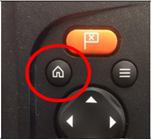
How to perform a factory reset on Element MFD

  1. Turn off the Element MFD
  2. Press and hold the HOME button

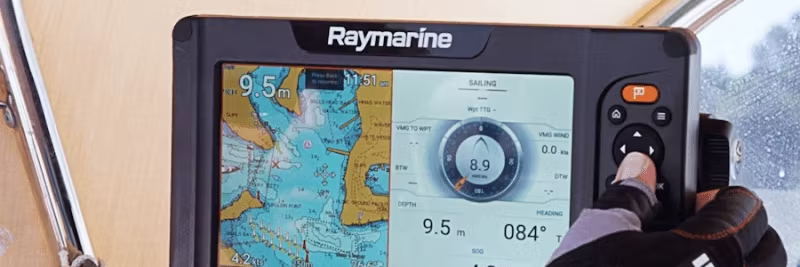
    Hold down the HOME button on Element MFD

  3. Press the POWER button while holding down the HOME button
    Note: You may need to completely disconnect power and then reconnect while holding down the HOME button and pressing the POWER button.

    Start Element MFD in recovery mode

  4. The device will start in recovery mode

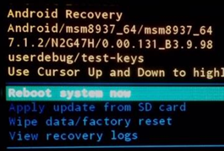
    Recovery mode on Element MFD

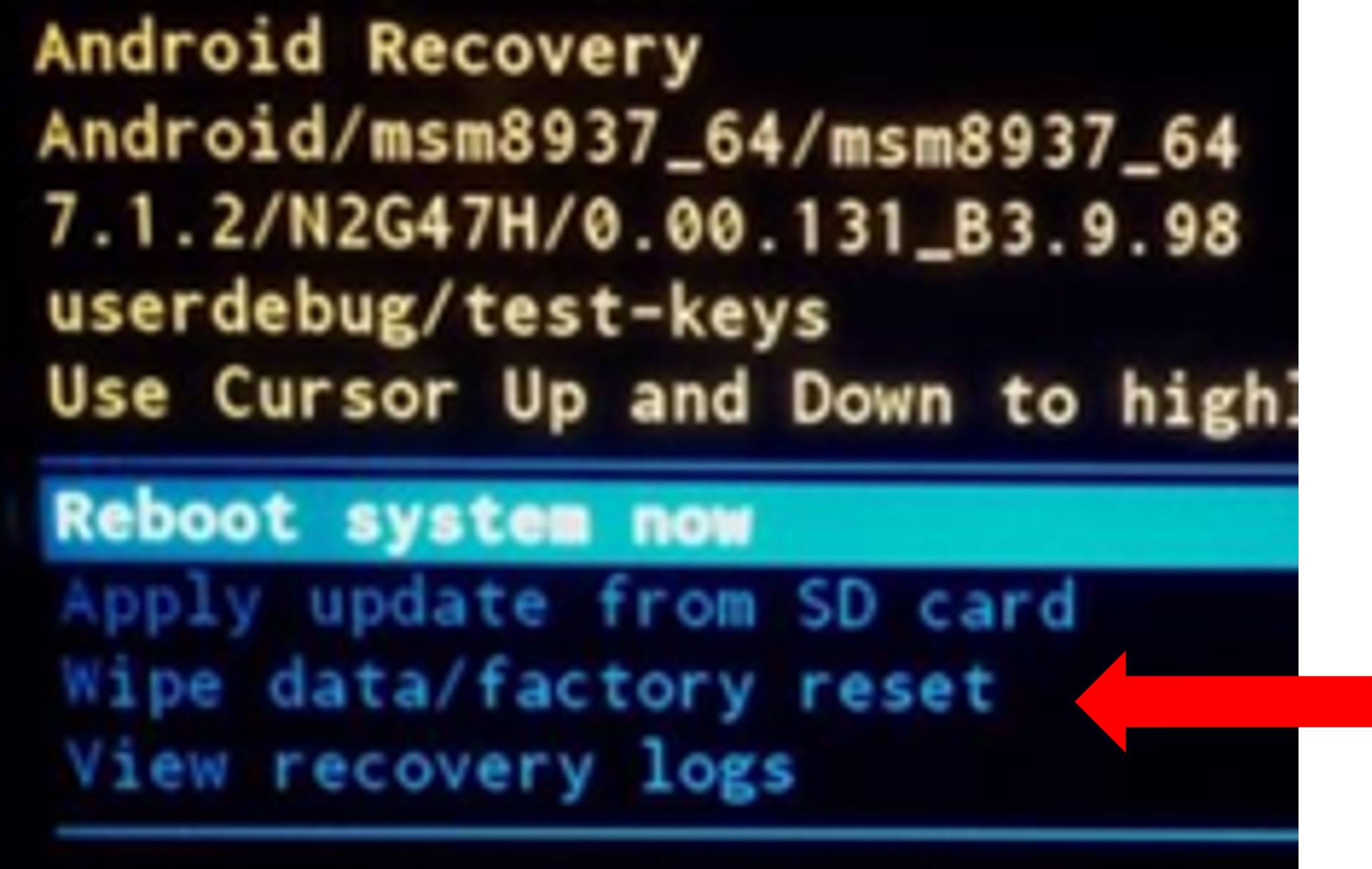
  5. Release the HOME button and select the option “Wipe data/factory reset”

    Select factory reset on Element MFD

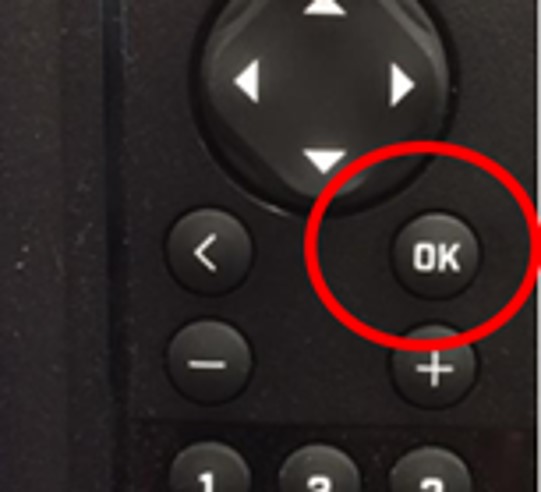
  6. Press the OK button to confirm

    Confirm reset on Element MFD

  7. Select YES to erase all user data
  8. Once the process is complete, press OK to restart the system
  9. Element will now start as a new device with the setup wizard
  10. Download the latest Element software from Raymarine's website for optimal performance

Tips for best results:

  • Ensure you have the latest software installed
  • Check power connections before resetting
  • Follow the steps carefully to avoid errors