
 Svenska
 Dansk
Dansk
 Suomi
Suomi
 Español
 Deutsch
 Français
 Italiano
 Nederlands
 Polskie
 Norsk
Norsk
Cart
Your cart is empty, but doesn't have to be..
Discount: 0.00 EUR
Digital Skipper |21/08, 2023
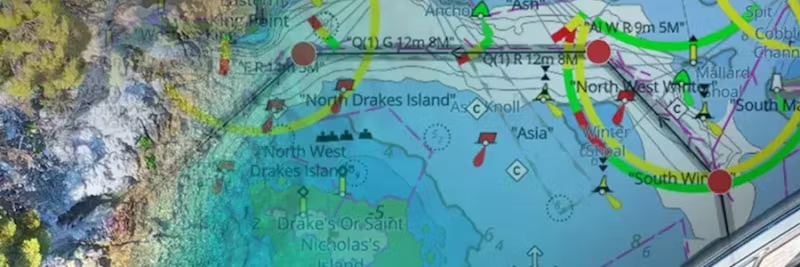
Sjöfartsverket and Hydrographica handle depth curves differently, which can sometimes create monochromatic blocks at the transition between zones. This can affect chart clarity. The solution is to adjust the depth curve settings in Raymarine LightHouse charts.
Differences in coloring between the Swedish Maritime Administration's and Hydrographica's areas can cause the chart to show sharp edges or blocks. By adjusting the settings, you get a smoother and more logical presentation.
Go to Settings → LightHouse charts → Depth Curves and select values based on your boat type:
Result:
Result: Everything above 3 m in Hydrographica areas becomes light blue, providing clear marking of the 6 m curve.
With updated charts and the latest software, Hydrographica areas will automatically appear whiter and blend better into the presentation.